Using LiteLLM With Zoo Code
LiteLLM is a versatile tool that provides a unified interface to over 100 Large Language Models (LLMs) by offering an OpenAI-compatible API. This allows you to run a local server that can proxy requests to various model providers or serve local models, all accessible through a consistent API endpoint.
Website: https://litellm.ai/ (Main project) & https://docs.litellm.ai/ (Documentation)
Key Benefits
- Unified API: Access a wide range of LLMs (from OpenAI, Anthropic, Cohere, HuggingFace, etc.) through a single, OpenAI-compatible API.
- Local Deployment: Run your own LiteLLM server locally, giving you more control over model access and potentially reducing latency.
- Simplified Configuration: Manage credentials and model configurations in one place (your LiteLLM server) and let Zoo Code connect to it.
- Cost Management: LiteLLM offers features for tracking costs across different models and providers.
Setting Up Your LiteLLM Server
To use LiteLLM with Zoo Code, you first need to set up and run a LiteLLM server.
Installation
- Install LiteLLM with proxy support:
pip install 'litellm[proxy]'
Configuration
- Create a configuration file (
config.yaml) to define your models and providers:model_list:
# Configure Anthropic models
- model_name: claude-sonnet
litellm_params:
model: anthropic/claude-sonnet-model-id
api_key: os.environ/ANTHROPIC_API_KEY
# Configure OpenAI models
- model_name: gpt-model
litellm_params:
model: openai/gpt-model-id
api_key: os.environ/OPENAI_API_KEY
# Configure Azure OpenAI
- model_name: azure-model
litellm_params:
model: azure/my-deployment-name
api_base: https://your-resource.openai.azure.com/
api_version: "2023-05-15"
api_key: os.environ/AZURE_API_KEY
Starting the Server
-
Start the LiteLLM proxy server:
# Using configuration file (recommended)
litellm --config config.yaml

# Or quick start with a single model
export ANTHROPIC_API_KEY=your-anthropic-key
litellm --model anthropic/claude-model-id -
The proxy will run at
http://0.0.0.0:4000by default (accessible ashttp://localhost:4000).- You can also configure an API key for your LiteLLM server itself for added security.
Refer to the LiteLLM documentation for detailed instructions on advanced server configuration and features.
Configuration in Zoo Code
Once your LiteLLM server is running, you have two options for configuring it in Zoo Code:
Option 1: Using the LiteLLM Provider (Recommended)
- Open Zoo Code Settings: Click the gear icon () in the Zoo Code panel.
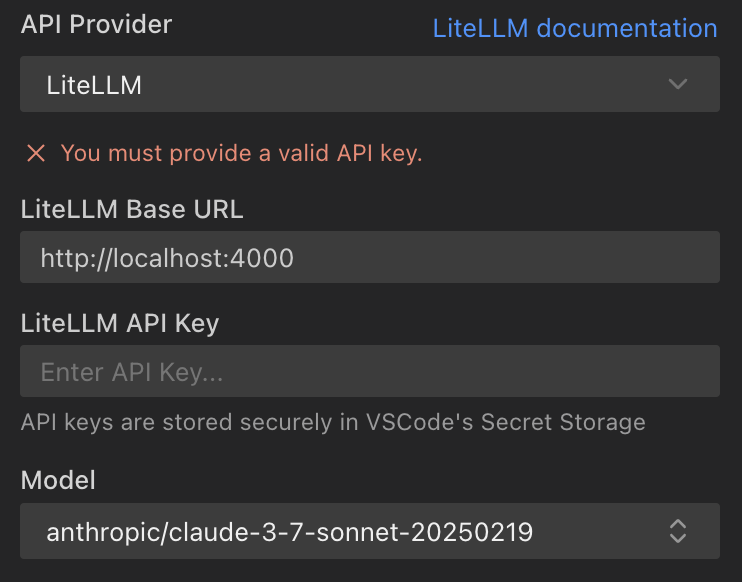
- Select Provider: Choose "LiteLLM" from the "API Provider" dropdown.
- Enter Base URL:
- Input the URL of your LiteLLM server.
- Defaults to
http://localhost:4000if left blank.
- Enter API Key (Optional):
- If you've configured an API key for your LiteLLM server, enter it here.
- If your LiteLLM server doesn't require an API key, Zoo Code will use a default dummy key (
"dummy-key"), which should work fine.
- Select Model:
- Zoo Code will attempt to fetch the list of available models from your LiteLLM server by querying the
${baseUrl}/v1/model/infoendpoint. - The models displayed in the dropdown are sourced from this endpoint.
- Use the refresh button to update the model list if you've added new models to your LiteLLM server.
- If no model is selected, Zoo Code will use a default model. Ensure you have configured at least one model on your LiteLLM server.
- Zoo Code will attempt to fetch the list of available models from your LiteLLM server by querying the
Option 2: Using OpenAI Compatible Provider
Alternatively, you can configure LiteLLM using the "OpenAI Compatible" provider:
- Open Zoo Code Settings: Click the gear icon () in the Zoo Code panel.
- Select Provider: Choose "OpenAI Compatible" from the "API Provider" dropdown.
- Enter Base URL: Input your LiteLLM proxy URL (e.g.,
http://localhost:4000). - Enter API Key: Use any string as the API key (e.g.,
"sk-1234") since LiteLLM handles the actual provider authentication. - Select Model: Choose the model name you configured in your
config.yamlfile.
How Zoo Code Fetches and Interprets Model Information
When you configure the LiteLLM provider, Zoo Code interacts with your LiteLLM server to get details about the available models:
- Model Discovery: Zoo Code makes a GET request to
${baseUrl}/v1/model/infoon your LiteLLM server. If an API key is provided in Zoo Code's settings, it's included in theAuthorization: Bearer ${apiKey}header. - Model Properties: For each model reported by your LiteLLM server, Zoo Code extracts and interprets the following:
model_name: The identifier for the model.maxTokens: Maximum output tokens. Defaults to8192if not specified by LiteLLM.contextWindow: Maximum context tokens. Defaults to200000if not specified by LiteLLM.supportsImages: Determined frommodel_info.supports_visionprovided by LiteLLM.supportsPromptCache: Determined frommodel_info.supports_prompt_cachingprovided by LiteLLM.inputPrice/outputPrice: Calculated frommodel_info.input_cost_per_tokenandmodel_info.output_cost_per_tokenfrom LiteLLM.supportsComputerUse: This flag is set totrueif the underlying model identifier matches one of the Anthropic models predefined in Zoo Code as suitable for "computer use" (seeCOMPUTER_USE_MODELSin technical details).
Zoo Code uses default values for some of these properties if they are not explicitly provided by your LiteLLM server's /model/info endpoint for a given model. The defaults are:
maxTokens: 8192contextWindow: 200,000supportsImages:truesupportsComputerUse:true(for the default model ID)supportsPromptCache:trueinputPrice: 3.0 (µUSD per 1k tokens)outputPrice: 15.0 (µUSD per 1k tokens)
Tips and Notes
- LiteLLM Server is Key: The primary configuration for models, API keys for downstream providers (like OpenAI, Anthropic), and other advanced features are managed on your LiteLLM server. Zoo Code acts as a client to this server.
- Configuration Options: You can use either the dedicated "LiteLLM" provider (recommended) for automatic model discovery, or the "OpenAI Compatible" provider for simple manual configuration.
- Model Availability: The models available in Zoo Code's "Model" dropdown depend entirely on what your LiteLLM server exposes through its
/v1/model/infoendpoint. - Network Accessibility: Ensure your LiteLLM server is running and accessible from the machine where VS Code and Zoo Code are running (e.g., check firewall rules if not on
localhost). - Troubleshooting: If models aren't appearing or requests fail:
- Verify your LiteLLM server is running and configured correctly.
- Check the LiteLLM server logs for errors.
- Ensure the Base URL in Zoo Code settings matches your LiteLLM server's address.
- Confirm any API key required by your LiteLLM server is correctly entered in Zoo Code.
- Computer Use Models: The
supportsComputerUseflag in Zoo Code is primarily relevant for certain Anthropic models known to perform well with tool-use and function-calling tasks. If you are routing other models through LiteLLM, this flag might not be automatically set unless the underlying model ID matches the specific Anthropic ones Zoo Code recognizes.
By leveraging LiteLLM, you can significantly expand the range of models accessible to Zoo Code while centralizing their management.