Roo to Zoo migration
Move your settings from Roo Code to Zoo Code in two steps. Export the settings file from Roo Code, then import that same file into Zoo Code.
Export from Roo Code
- Open Roo Code settings.
- Click Export.
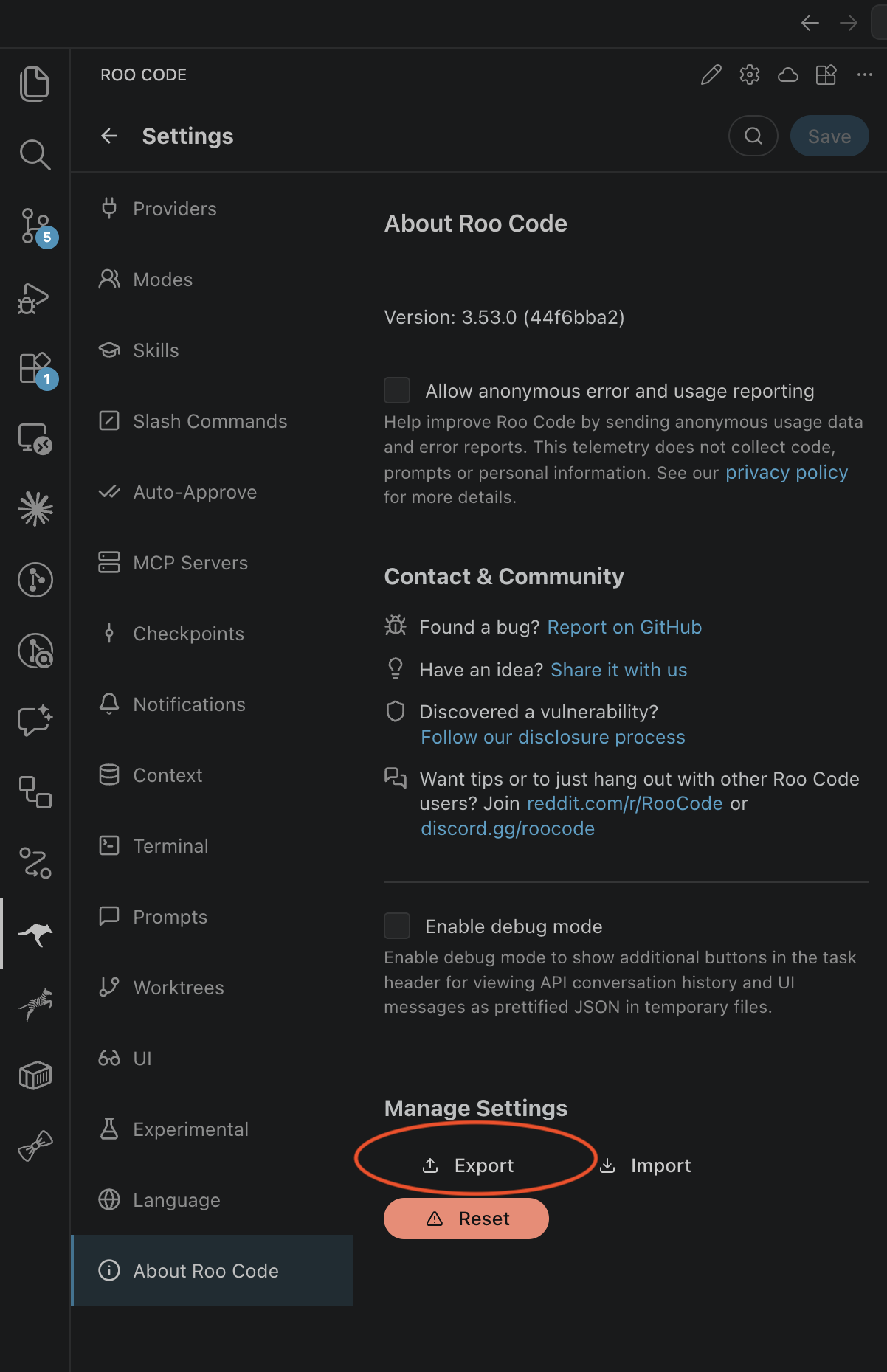
Why this view matters: This starts the Roo Code settings export.
- When the save dialog opens, choose a location and save the file.

Why this view matters: This is the file Zoo Code will import.
The exported file can include sensitive settings, including API keys. Store it carefully. Do not share it.
Import into Zoo Code
- Open Zoo Code.
- Click Import Settings.
- Select the file you exported from Roo Code.
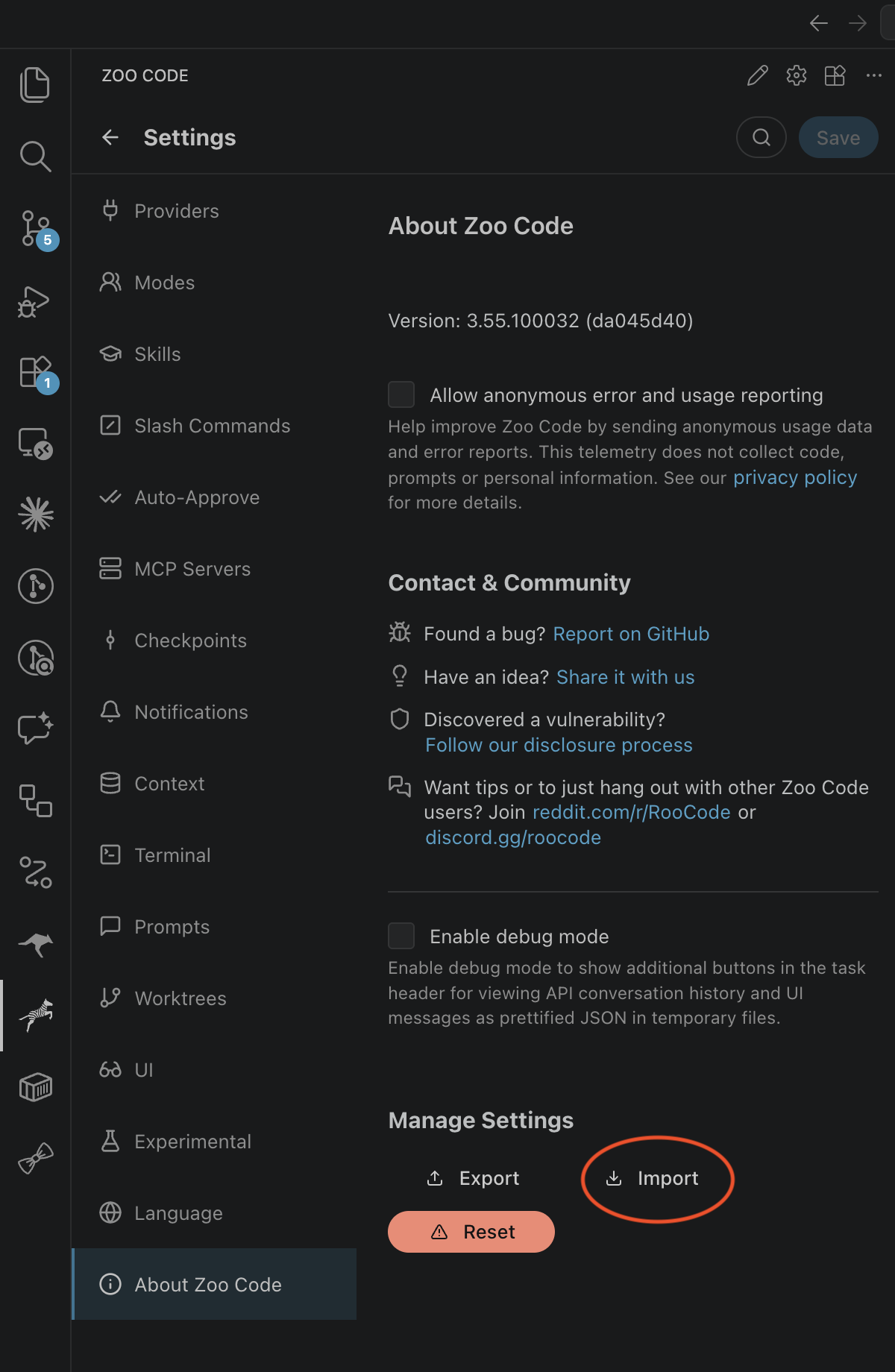
Why this view matters: This is where Zoo Code loads the exported settings file.
Zoo Code imports the file and merges the settings into your current setup.