The Chat Interface
The Zoo Code chat interface is your primary way of interacting with it. It's located in the Zoo Code panel, which you can open by clicking the Zoo Code icon () in the VS Code Activity Bar.
Components of the Chat Interface
The chat interface consists of the following main elements:
-
Chat History: This area displays the conversation history between you and Zoo Code. It shows your requests, Zoo Code's responses, and any actions taken (like file edits or command executions).
-
Input Field: This is where you type your tasks and questions for Zoo Code. You can use plain English to communicate.
-
Action Buttons: These buttons appear above the input field and allow you to approve or reject Zoo Code's proposed actions. The available buttons change depending on the context.
-
Send Button: This looks like a small plane and it's located to the far right of the input field. This sends messages to Zoo after you've typed them.
-
Plus Button: The plus button is located at the top in the header. It switches to the Chat tab and focuses the input. To reset the session, start a new task or clear the current task.
-
Settings Button: The settings button is a gear, and it's used for opening the settings to customize features or behavior.
-
Mode Selector: The mode selector is a dropdown located to the left of the chat input field. It is used for selecting which mode Zoo should use for your tasks. Its settings gear opens the Modes tab, not general settings.
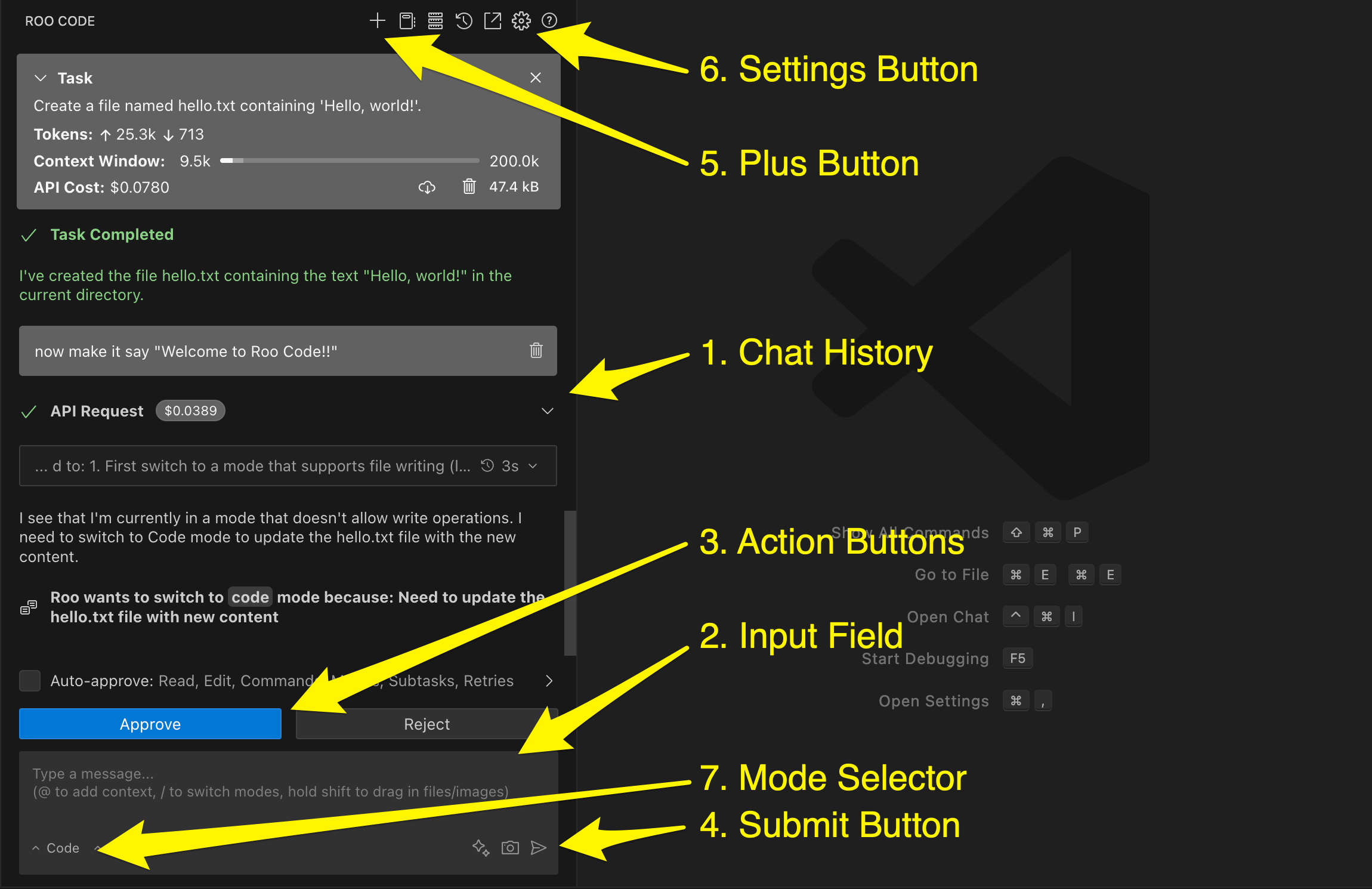
Numbered interface elements showing the key components of the Zoo Code chat interface.
Tip: Using the Secondary Sidebar
For a better workflow, you can drag Zoo Code to VS Code's Secondary Sidebar. This allows you to keep Zoo Code visible while still having access to the Explorer, Search, Source Control, and other panels in the primary sidebar.
To set this up:
- Click and drag the Zoo Code icon from the Activity Bar
- Drop it on the right side of your editor to create a secondary sidebar
- Now you can use both sidebars simultaneously!
For more productivity tips, check out our Tips & Tricks guide.
Interacting with Messages
- Clickable Links: File paths, URLs, and other mentions in the chat history are clickable. Clicking a file path will open the file in the editor. Clicking a URL will open it in your default browser.
- Copying Text: You can copy text from the chat history by selecting it and using the standard copy command (Ctrl/Cmd + C). Some elements, like code blocks, have a dedicated "Copy" button.
- Expanding and Collapsing: Click on a message to expand or collapse it.
Status Indicators
- Loading Spinner: When Zoo Code is processing a request, you'll see a loading spinner.
- Error Messages: If an error occurs, a red error message will be displayed.
- Success Messages: Green messages indicate successful completion of actions.